

Module goals
- Understand the basics of React.js and how it works
- Build an interactive front-end application with React.js
- Connect a React app to a backend via an API
Prerequisites
Before starting this module, you should be comfortable with:- HTML, CSS, and JavaScript (including ES6)
- Node.js and NPM
- Basic Git for managing projects
Installation
Introduction — React.js can be installed in several ways. The two most common are:- Create React App (CRA) — the classic way to start a React project
- Vite — a modern build tool that’s lighter and faster
Why install with Vite?
Vite is a modern build tool built to speed up web development, including React.js apps. Compared to tools like Create React App (CRA), Vite has several advantages:- Faster development — quicker startup and hot reload
- Smaller project footprint — less tooling overhead
- Modern JavaScript and TypeScript — native ESM support
- Faster dev server — instant server start
Although Vite can feel a bit more technical at first, the long-term benefits for productivity and performance are significant.
Let’s run the installer
Open a terminal Go to your project directory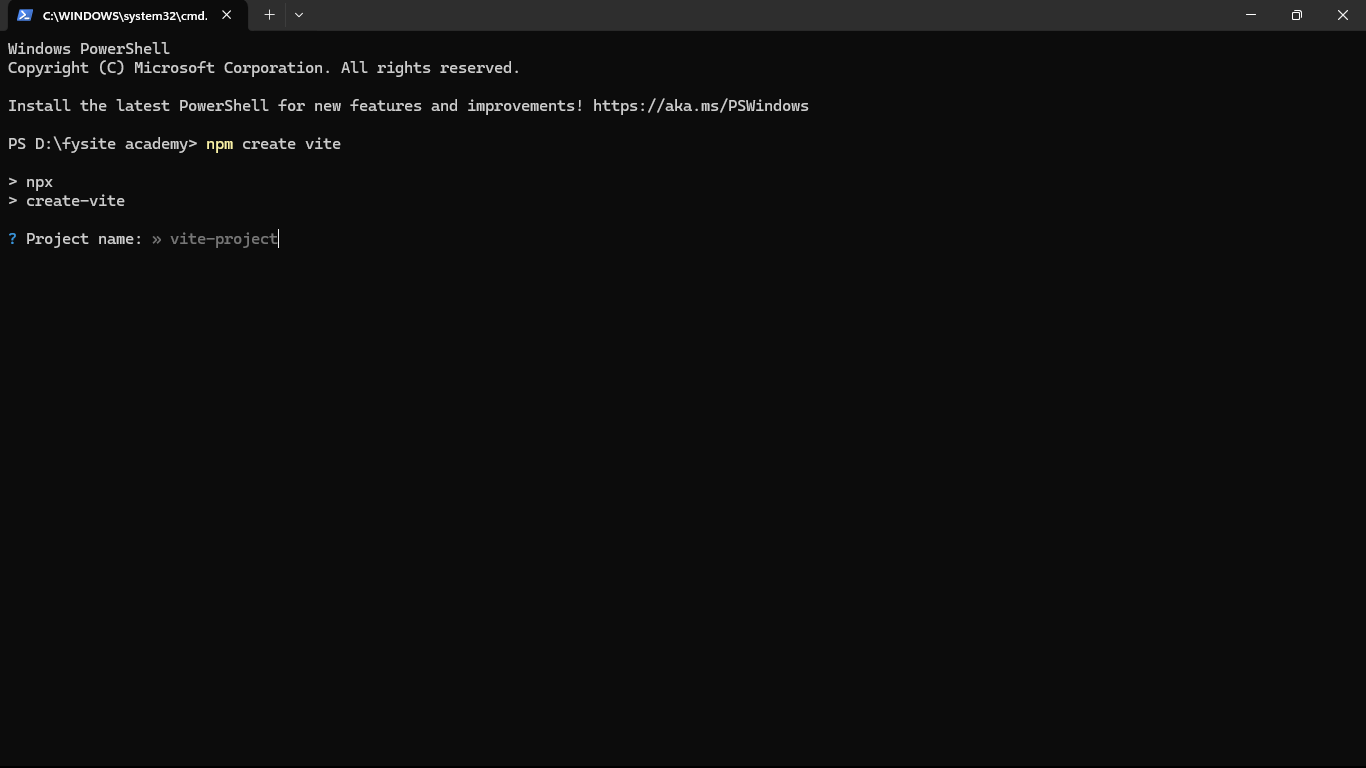
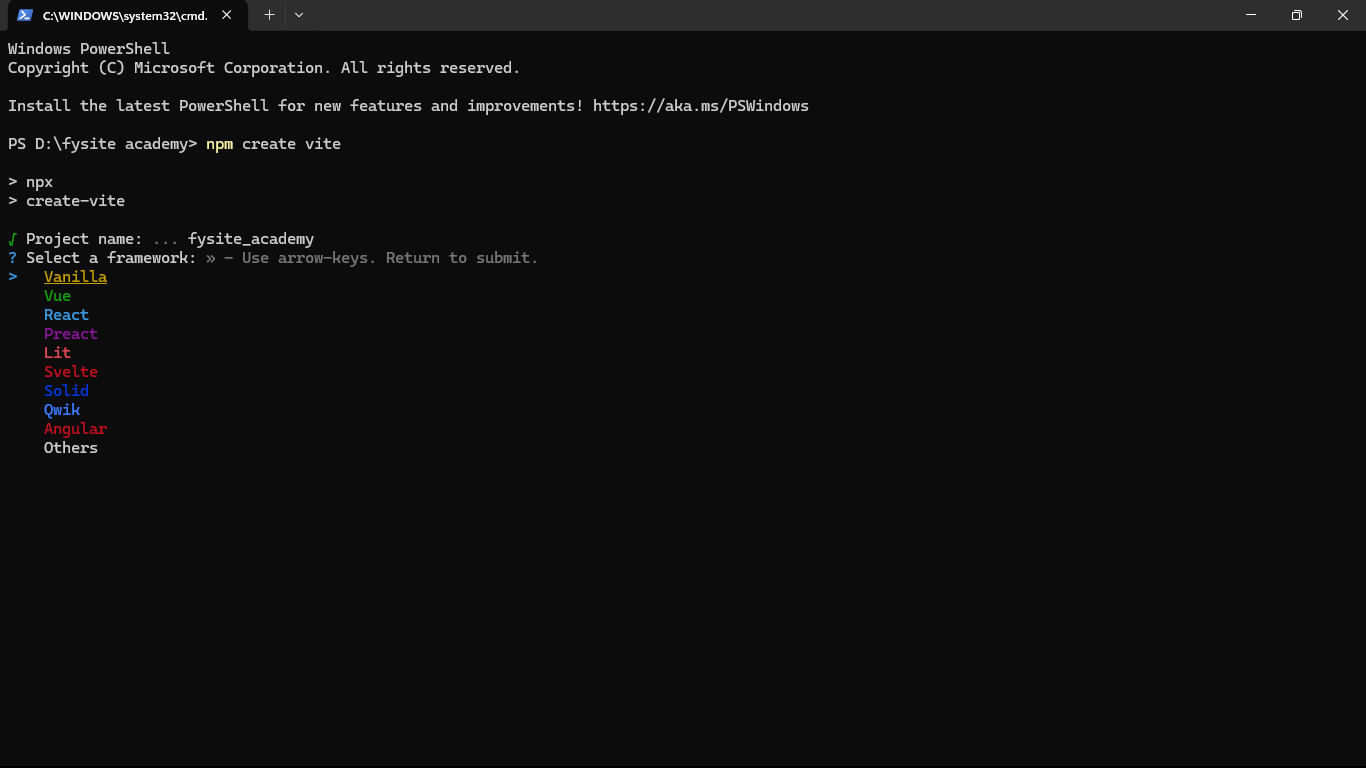
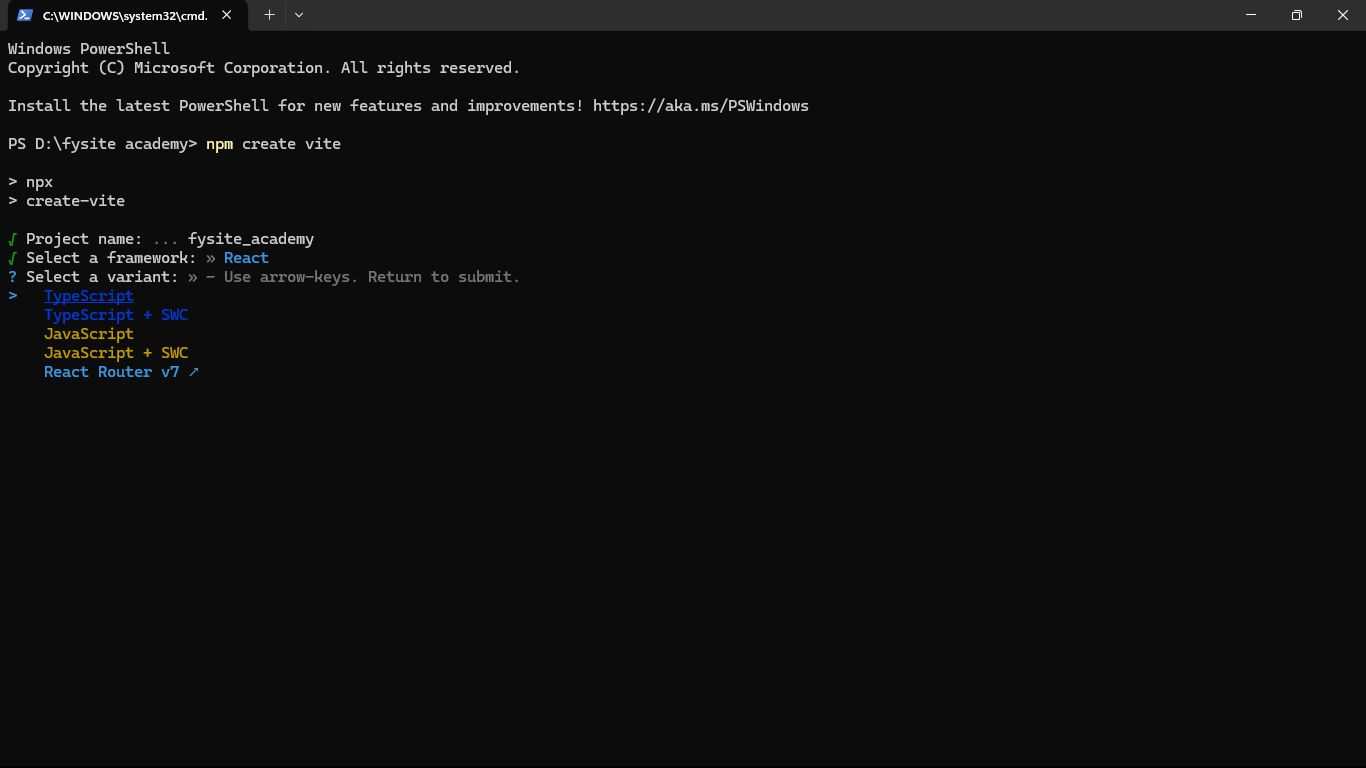
nama-proyek with the name you gave the project.)
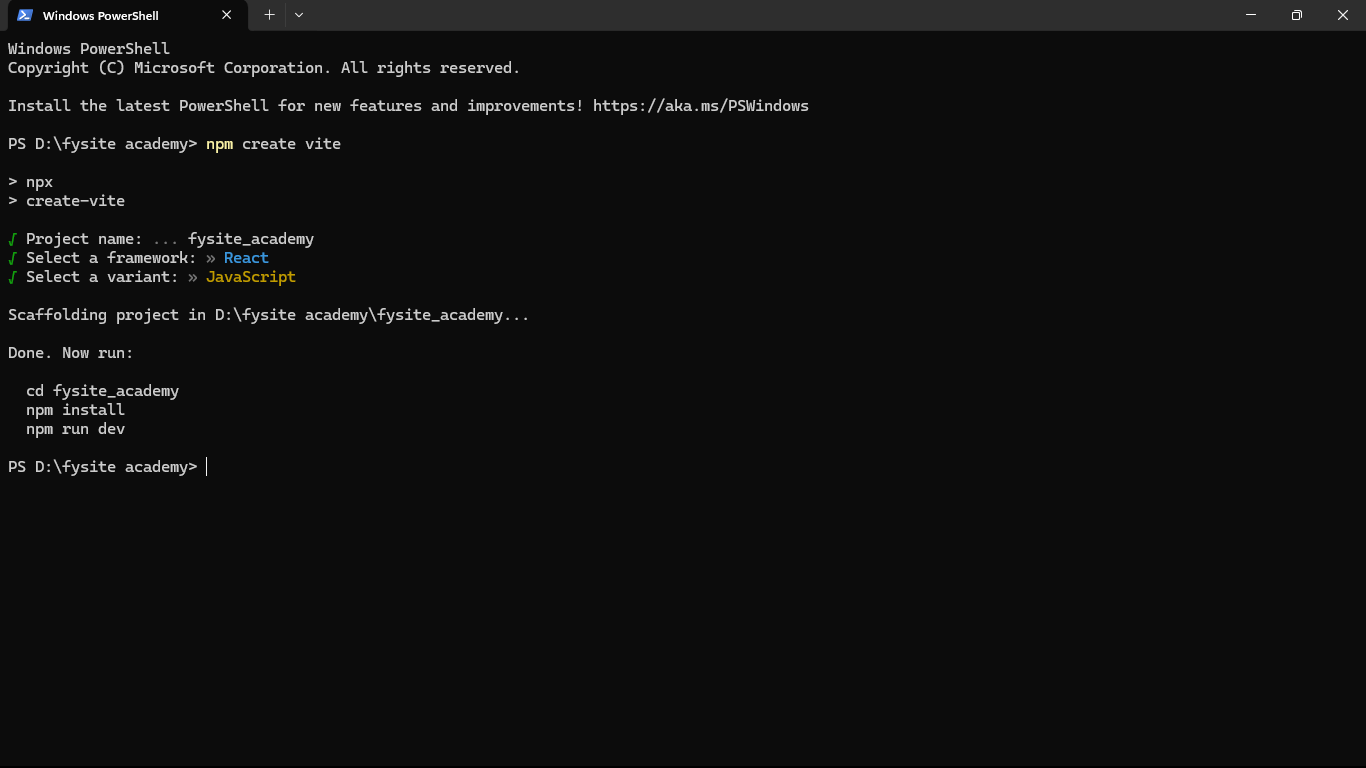
- Run the project (e.g.
npm run dev), or - Open it in your IDE (e.g. VS Code) with:
Hello World in React
The React template structure can be confusing at first. Here’s where the main application code lives:- App.js — The main React component. Your app logic starts here.
- App.css — Styles for the component in App.js.
- index.js — The entry point. It renders your React component into the DOM (via
index.html).
How to build “Hello World” in React
- Open
src/App.jsin your editor. - Remove the default content (the highlighted/blocked part in the screenshot below).
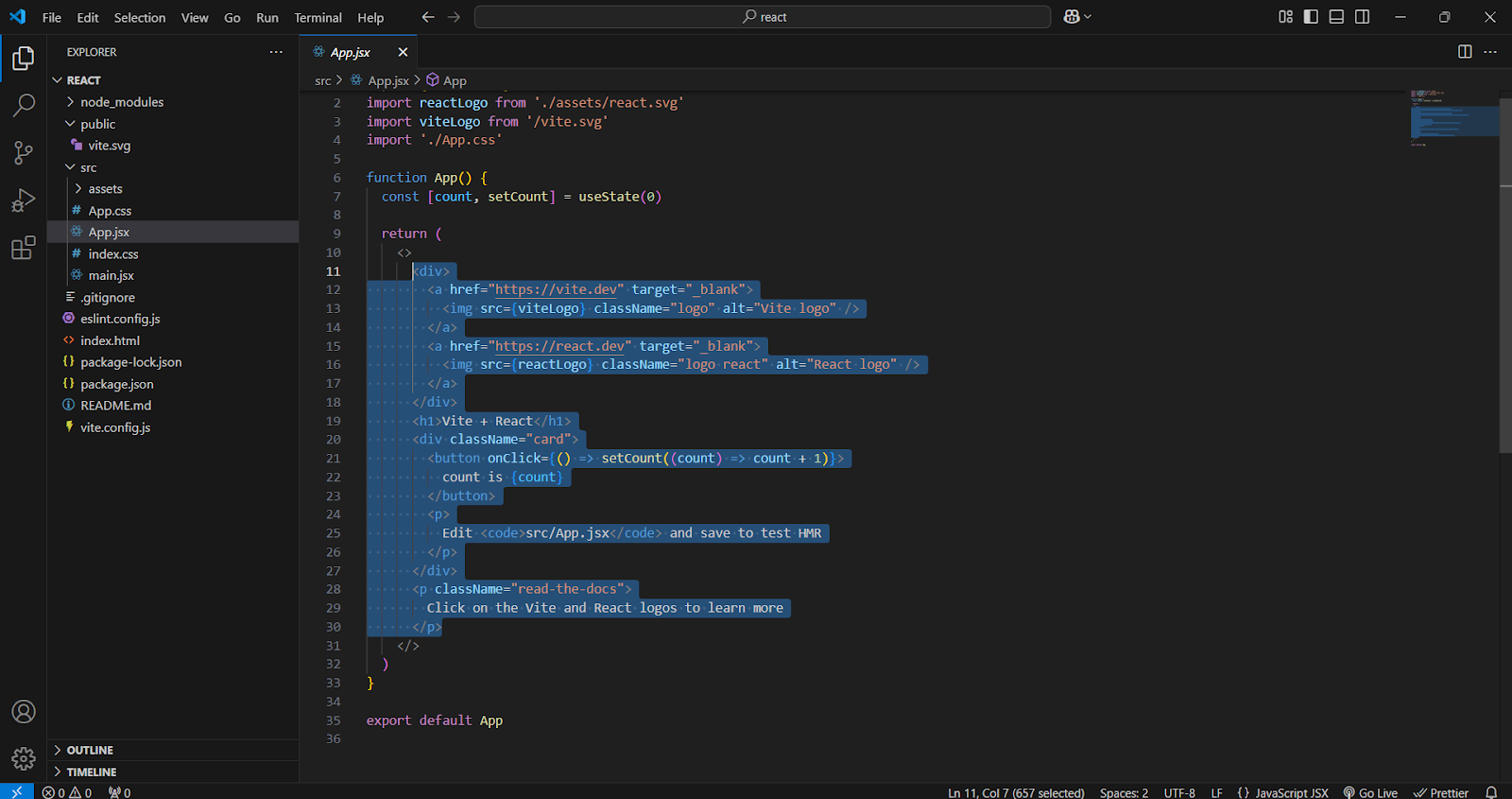
- Replace it with a simple
<h1>that says “Hello World!”. - Save and check the browser. You should see something like:
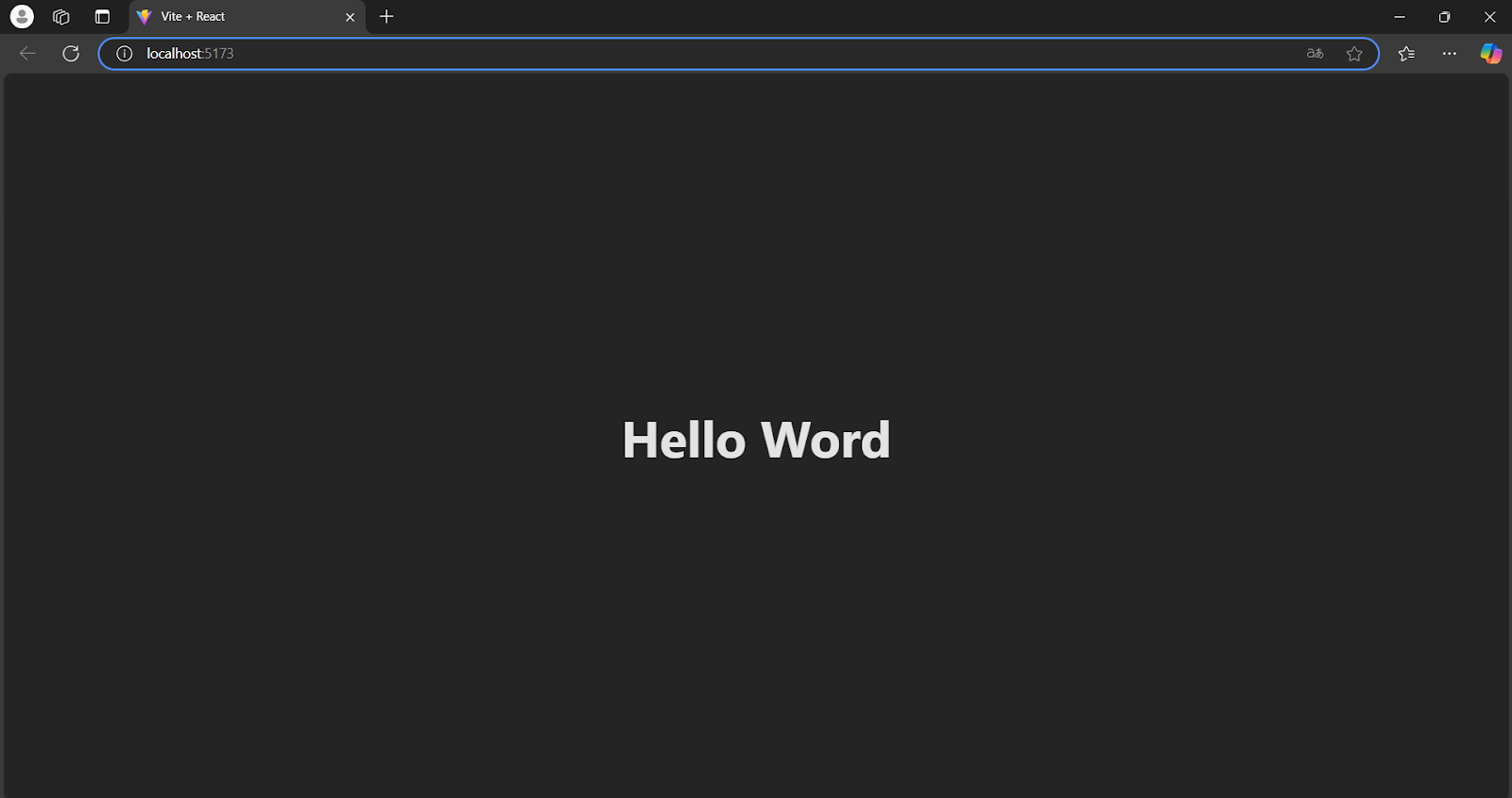
You’ve built Hello World in React
Well done — you’ve got your first React “Hello World” running.Creating components
What is a component?
In React, components are the building blocks of the user interface (UI). A component can be a piece of UI (e.g. a button, an input, a form) or logic that produces UI. Components are reusable—you can use the same component in different parts of your app.How to create a component
- Create a folder inside
/src—e.g.components. The name is up to you;componentsis used here for clarity. - Inside that folder, create a
.jsxfile (e.g.Fysite.jsx).
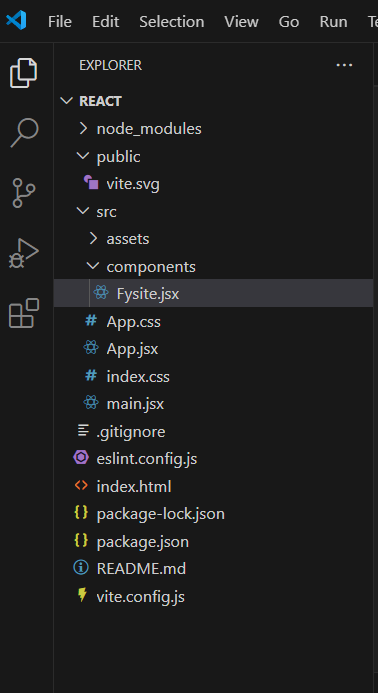
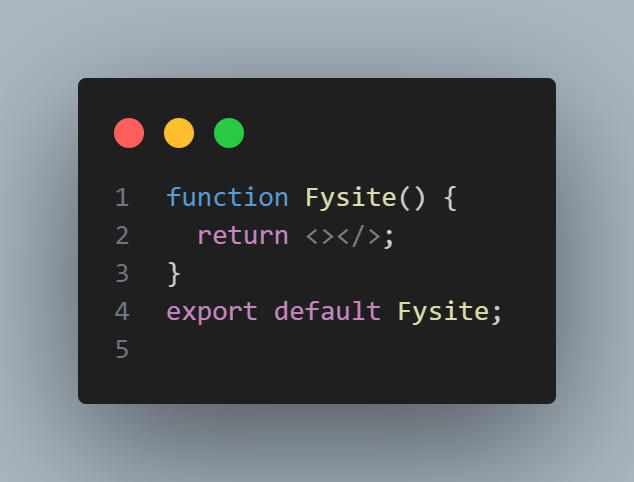
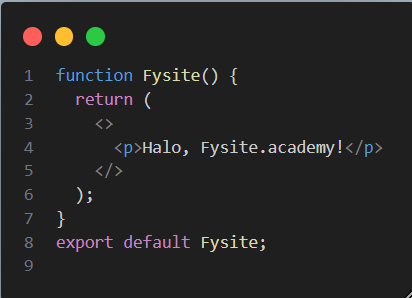
How to show the component on the page
Import the component in App.js — To display the Fysite component, import it inApp.js and use it in your JSX:
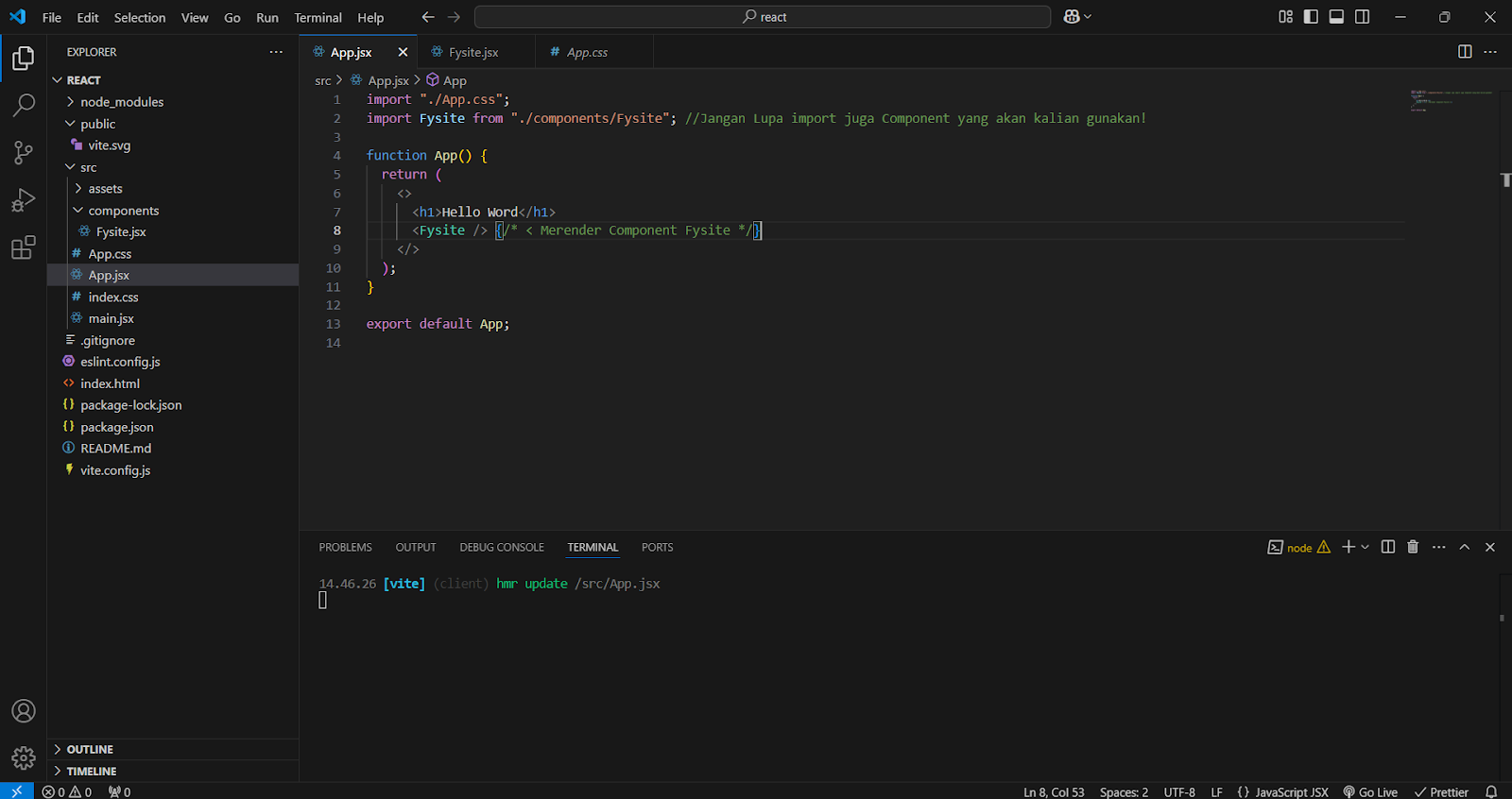
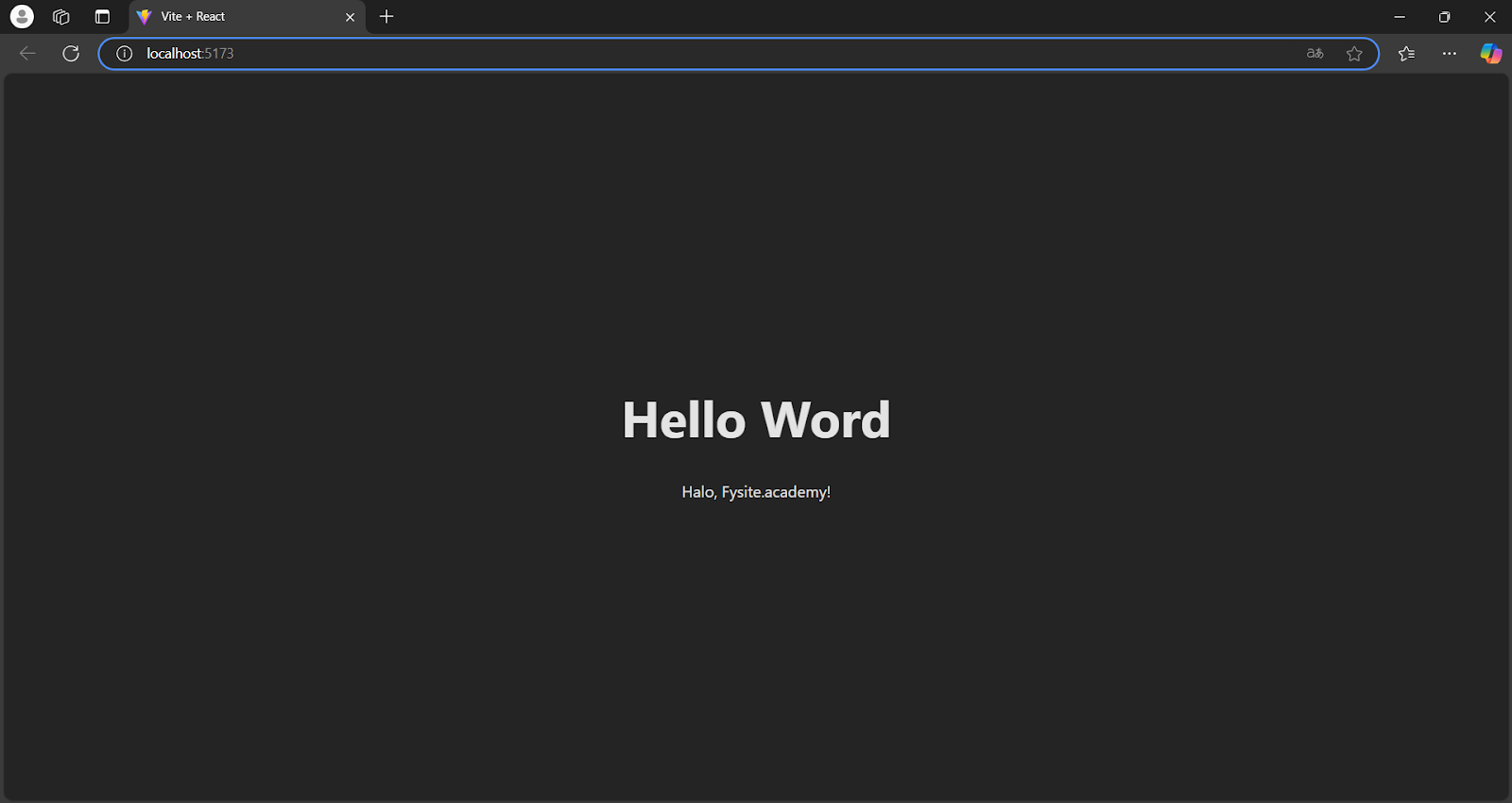
Summary
- Create a component (e.g. Fysite) in its own file.
- Import it in the file where you want it to show (e.g.
App.js). - Use it in JSX (e.g.
<Fysite />).
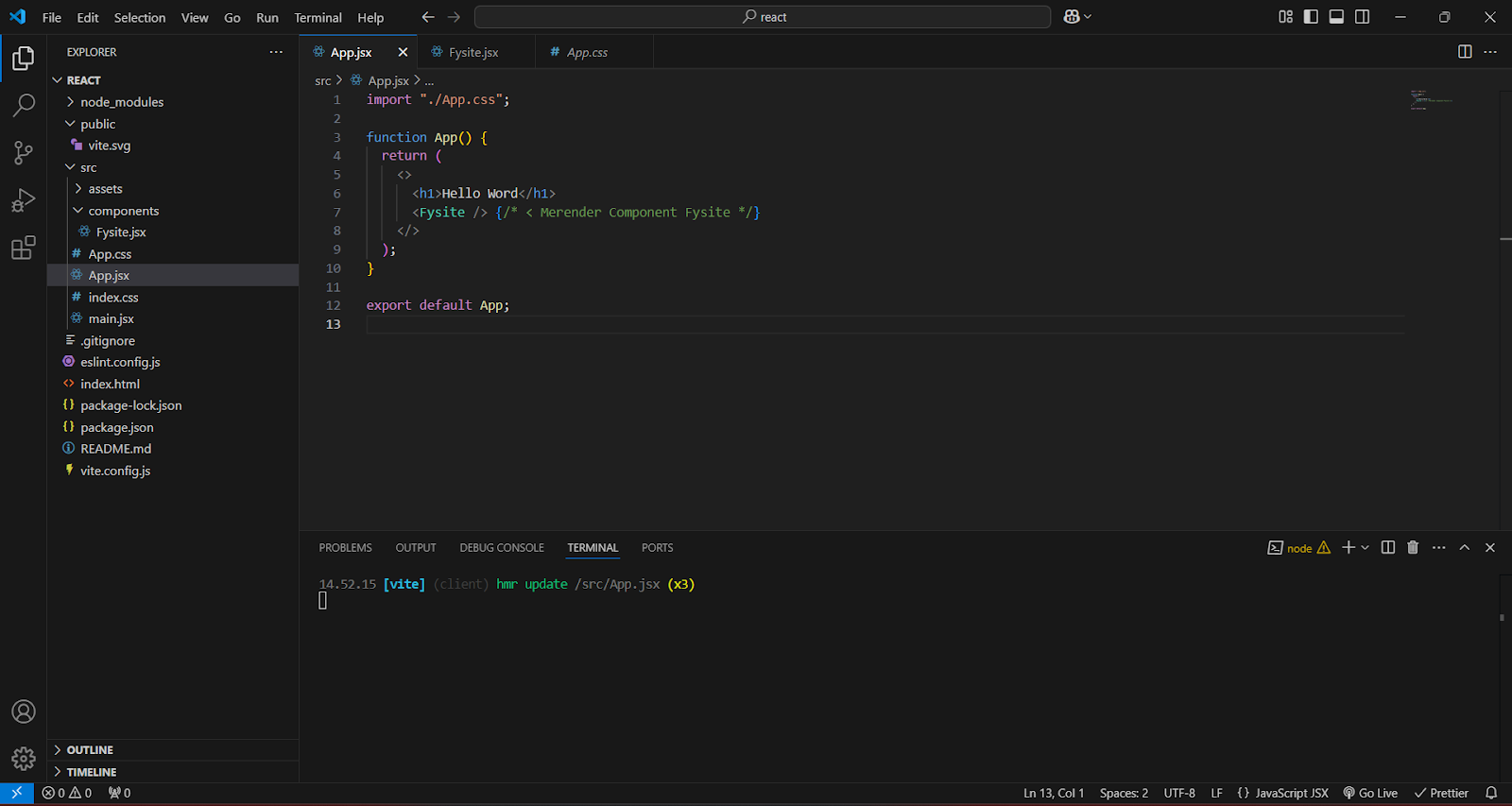
<Fysite /> in App.js but never add the import statement for Fysite, will the Fysite component work? (No—you must import it first.)
Props
What are props in React?
Props are how a parent component passes data down to a child component. If a component needs something from the outside, the parent sends it via props—like a package from parent to child. Think of it this way: the parent (e.g. “Mama”) gives a gift to the child (e.g. “Baby”). The gift is the props.Example: props in React
- Mama (parent) passes the prop
namaHadiah="Boneka Beruang"to Hadiah (child). - Hadiah receives that prop and displays it.
Props are read-only
Props are like a gift from the parent—the child can use them but cannot change them. A child component should not modify the props it receives.Props can be anything
You can pass many types of values as props:- String:
<Hadiah namaHadiah="Mobil Mainan" /> - Number:
<Hadiah jumlah={3} />(use{3}for numbers in JSX) - Boolean:
<Hadiah isBaru={true} /> - Object:
<Hadiah info={{ nama: "Kue", rasa: "Coklat" }} /> - Function:
<Hadiah onClick={handleKlik} />
Summary
- Props are data passed from a parent component to a child component.
- Props are read-only; the child should not mutate them.
- Props can be strings, numbers, booleans, objects, functions, etc.
State, useState, and useEffect
State,useState, and useEffect are essential for building interactive React apps. Here’s how they work.
1. What is state?
State is data that can change over time—like a component’s “mood.” When state changes, React re-renders the component so the UI stays in sync. Think of a toy lamp with a button:- Press once → the lamp turns on
- Press again → the lamp turns off
2. Using useState to manage state
React’s useState hook lets you store and update state inside a component.Example 1: Light on/off button
useState(false)means the lamp starts offsetNyala(!nyala)toggles the state each time the button is clicked
Example 2: Count bottles
useState(5)sets the initial count to 5setJumlah(jumlah - 1)decreases the count by 1 when the button is clicked
3. What is useEffect?
useEffect runs code in response to changes—for example when state changes, or when the component first appears. Use it for “side effects” that react to your app’s data. Examples:- Show a message when a value reaches zero (e.g. “Out of milk!”)
- Update the browser tab title when data changes
- Fetch data from an API when the component mounts or when a dependency changes
Example 1: Alert when bottles reach zero
useEffect(() => { ... }, [jumlah])runs wheneverjumlahchanges- When
jumlahbecomes 0, the alert appears
Example 2: Update page title when state changes
- Whenever
judulchanges, the browser’s document title updates to match
4. When to use useEffect
Use useEffect when you need to:- Run code when the component first mounts
- Run code when specific state or props change (list them in the dependency array)
- Clean up (e.g. cancel subscriptions) when the component unmounts
- Battery check — e.g. “Battery at 10%!”
- Chat notifications — e.g. “You have 3 new messages!”
- Fetch from API — load and display the latest data when the component mounts or when a dependency changes
5. Summary
- State — Data that can change; when it changes, the component re-renders.
- useState — Hook to declare and update state.
- useEffect — Hook to run side effects when the component mounts or when dependencies change.
- React to state/props changes (e.g. update title, show alert)
- Run code once on mount (e.g. fetch data)
- Optionally clean up on unmount
What is an API?
An API (Application Programming Interface) is like a restaurant:- We (frontend) = the customer who orders
- API = the waiter who takes the order to the kitchen
- Backend (server) = the kitchen that prepares the food
- JSON data = the food delivered to the customer
What is Axios?
Axios is a JavaScript library for making HTTP requests. Compared tofetch(), Axios is often simpler because:
- It parses the response to JSON by default
- It handles errors in a straightforward way
- You can set timeouts and headers easily
Using Axios to GET data from an API
We’ll fetch data from https://jsonplaceholder.typicode.com/posts, which returns a list of posts. 1. Install Axios (if you haven’t already)- useState holds the API data, loading flag, and error message.
- useEffect runs once on mount (
[]) and calls the API. - axios.get() fetches the data;
.then()saves it and turns off loading;.catch()saves the error. - If loading is true, show “Loading…”.
- If there’s an error, show the error message.
- If data is ready, show the list of posts (here, the first 10).
- Sunt aut facere repellat provident occaecati excepturi optio reprehenderit — Lorem ipsum dolor sit amet…
- Qui est esse — Doloribus autem saepe qui et et.
- …and so on.
Summary
- Axios makes it easy to request data from an API.
- useEffect is used so the API is called once when the component first mounts.
- useState holds the API result so you can show it in the UI and handle loading and error states.
Project: React + TVMaze API
Build a React Vite app that searches TV shows using the TVMaze API.Before uploading your project, delete the node_modules folder.
1. Setup: Create a Vite + React project
Create and run a new React project with Vite:2. Install Axios for API requests
Axios will handle HTTP requests to the TVMaze API. Install it:3. Create the TV show search component
Create a new file insrc named SearchShow.jsx with this code:
4. Use SearchShow in App.jsx
Import and renderSearchShow in your main app. Open src/App.jsx and update it to:
5. Run and try the app
Start the dev server:Deployment
Time to put your project on the internet so anyone can access it. We’ll use Vercel to deploy—it’s straightforward. Follow the steps below.Deploy to Vercel via the website
1. Create a Vercel account
If you don’t have one yet, go to vercel.com and sign up. You can sign in with GitHub, GitLab, or Bitbucket. Pick the one you use for your project.2. Connect to GitHub
After logging in, connect your GitHub account to Vercel so you can deploy from your repos.- Push your project to GitHub — Make sure your React Vite code is in a GitHub repository.
- In Vercel, click New Project.
- Connect your GitHub account to Vercel. You’ll see a list of your repositories.
- Choose the repository that contains the React Vite project you want to deploy.
3. Configure the project
Once you’ve selected the repo, configure the build:- Framework — Vercel usually detects it. Confirm that React (Vite) is selected.
- Build Command — Set this to:
npm run build - Output Directory — Set this to:
dist - When everything looks good, click Deploy and wait for the build to finish.
4. Check your project URL
When the deploy finishes, Vercel gives you a unique URL for your app.- Open the link from Vercel to see your React Vite app live on the internet.
- Test the app to make sure everything works.
- Share the link so others can try it.
5. Extra tips
- Check the Vercel dashboard for build and runtime logs if something goes wrong.
- Add a custom domain in the Vercel dashboard so your app has a nicer URL.
- Set environment variables in the project settings if you need API keys or other config.
- Keep the build small by removing unused dependencies and checking bundle size.
Congratulations — your app is now online and ready to use. Deploying a React Vite project to the web only takes a few minutes. Explore Vercel’s other features to improve performance and polish your project. Happy deploying!
Submit
Add your Github link or project in Google Drive then the community will review
and help you together. Please stay tuned on Discord to see the latest updates!